How to Create an XLSForm in Minutes with AI (No Code)
If you have ever tried to build a KoboToolbox form by hand, you know the pain. Three sheets. Special column names. Square brackets where curly braces should go. One typo and the whole form refuses to upload.
There is a faster path. This guide shows the manual structure of an XLSForm so you understand what the tool produces, then the AI shortcut that takes you from plain-English questions to a deployable XLSForm in under five minutes.
Short answer: An XLSForm is an Excel file with three sheets (survey, choices, settings) that KoboToolbox converts into a digital form. To create one with AI, describe your survey in plain English to a tool like KoboGPT. It generates a valid XLSForm that you upload straight to KoboToolbox.
What is an XLSForm?
An XLSForm is a standardized spreadsheet that defines a digital survey. It works for KoboToolbox, ODK, ONA, SurveyCTO, and other XLSForm-compatible platforms. Three sheets:
- survey — one row per question. Columns: type, name, label, hint, required, relevant, constraint, calculation.
- choices — answer options for select_one and select_multiple questions. Columns: list_name, name, label.
- settings — form metadata. Columns: form_title, form_id, default_language.
Get any of these wrong and the form will not deploy. The most common breakers: spaces in names, mismatched list references, and skip logic with the wrong column name.
Think of an XLSForm as a contract between you and KoboToolbox. The spreadsheet describes every question, every answer option, and every conditional rule. The platform reads that contract and renders the survey on enumerator phones exactly as you specified.
The format feels casual because it lives in Excel. The rules behind it are strict. Column headers, list references, and expression syntax all follow the XLSForm specification. Stray from the spec and the form fails validation before it ever reaches the field.
The upside of this rigour is portability. The same XLSForm runs on KoboToolbox, ODK, ONA, and SurveyCTO without rewrites. Build the form once, deploy it anywhere your team collects data.
The three columns that trip everyone up
- type — must be a valid type (text, integer, decimal, select_one [list], select_multiple [list], date, geopoint, etc.). Typos here silently break the form.
- name — the variable name used in logic and exports. No spaces, no special characters, must be unique.
- relevant — the skip logic column. Uses XPath-like expressions:
${age} > 18orselected(${interest}, 'wash').
The type column is the first place where forms quietly fail. A space, a capital letter, or a missing list reference inside the brackets makes the question disappear from the deployed form. Validators flag this only after upload.
The name column drives every downstream system. Field names appear in your export columns, in skip-logic references, and in your Power BI dashboard. Choose short, readable names you will recognise six months later.
The relevant column is where most enumerator complaints originate. Wrong brackets, missing quotes, or a reference to a non-existent field will hide questions silently. Test every skip rule on a real device before deployment.
The manual way (and why it gets slow)
To build by hand, open Excel or Google Sheets, set up the three sheets with the right columns, write each question as a row, list every answer option in choices, and define your settings. Then test, fix errors, re-upload, retest. A 30-question form with skip logic typically takes 60 to 90 minutes if you know what you are doing. Two hours plus if you do not.
The bottleneck is rarely the typing. It is the back-and-forth with the validator. Every cycle of upload, error message, fix, re-upload costs minutes you do not have during proposal week.
The other hidden cost is consistency. When five M&E officers build forms by hand, you end up with five different naming conventions. That breaks pooled analysis later, when the donor asks for cross-country indicators.
Manual form building also resists reuse. A WASH survey from one project rarely lifts cleanly into the next. You end up rebuilding the same indicators every cycle instead of refining what works.
The AI way with KoboGPT
Open KoboGPT. Paste your survey requirements in plain English. or upload a file in any format.
Example prompt:
“Create a household food security survey for rural Somalia. Include the Food Consumption Score (FCS), Household Hunger Scale (HHS), basic demographics, GPS location, and a coping strategies section that only appears if HHS is severe. Multilingual: English and Somali.”
- Generate. KoboGPT produces a complete XLSForm with all three sheets, valid types, valid skip logic, and the multilingual columns wired up.
- Review. Scan the generated form. Adjust any wording or order to match your context.
- Download or deploy. Export as XLSX, or push directly to KoboToolbox in one click.
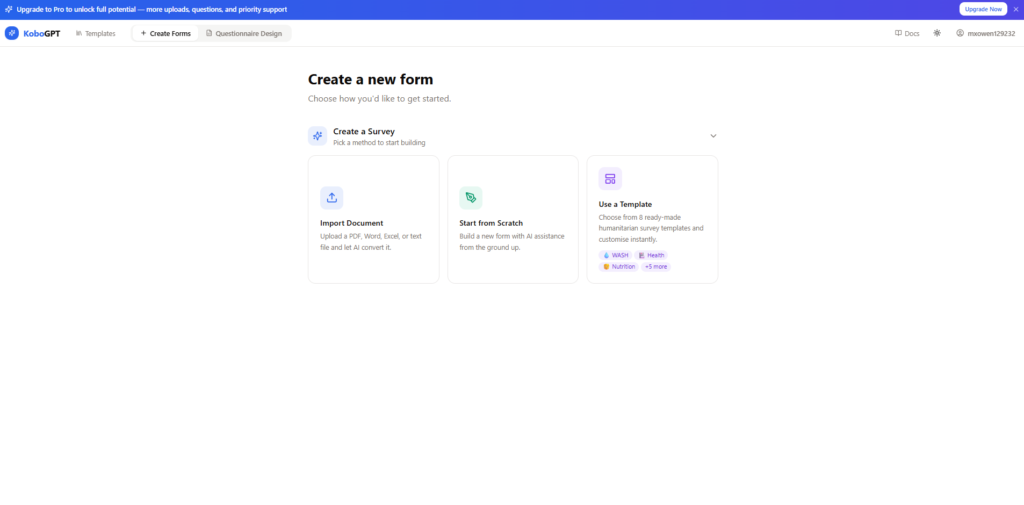
Total time: 3 to 5 minutes. Compare to 60 to 120 minutes by hand.
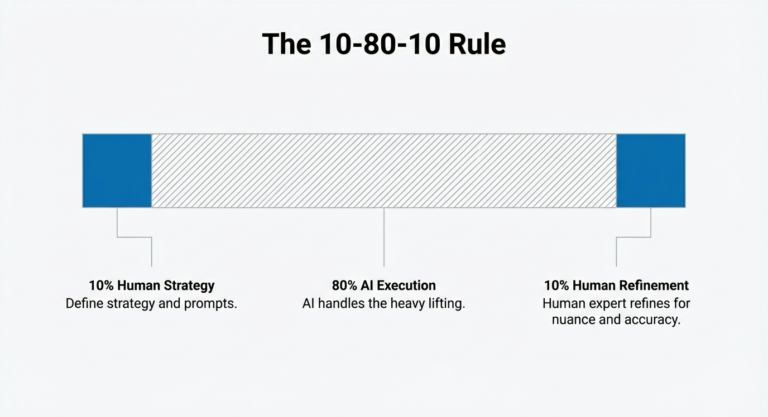
The discipline behind this speed is the 10-80-10 rule. You spend ten percent framing the prompt, KoboGPT does eighty percent of the structural work, and you validate the last ten percent against your indicators.
Prompts work best when they read like a project brief. Name the population, the location, the indicators you need, and the languages. The more context you give, the closer the first draft lands.
Treat the generated form as a draft, not a final. Read every question aloud as if you were the enumerator. Adjust phrasing for cultural fit before the pilot.
Common XLSForm errors and how to avoid them
- Invalid type — “select one” is wrong, it must be
select_one [list_name]. - List name mismatch — the list_name in choices must match exactly the [list] reference in the survey type column.
- Spaces in name — variable names cannot contain spaces. Use underscores.
- Skip logic syntax — wrap references in
${...}, not{...}or$(...). - Required but no constraint — required does not validate values. Use constraint with a
constraint_messagefor that.
Most errors trace back to one of two habits. You either typed the column header from memory, or you copied a row from an older form without updating the references. Both are fixable with a single audit pass before upload.
Build a habit of validating early. Upload the form to KoboToolbox every five to ten questions instead of waiting until the end. Errors caught early take seconds to fix rather than half an hour.
Keep a personal cheat sheet of the syntax patterns that work in your context. Skip logic for consent gates, constraints for age ranges, and integer ranges for HHS scores show up in nearly every humanitarian form.
Free XLSForm starter template
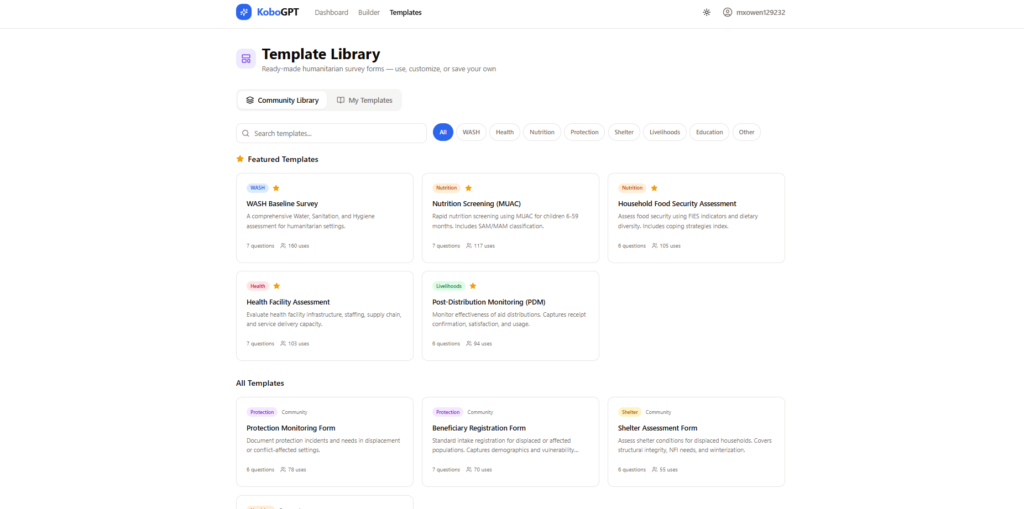
If you want to learn by editing rather than from scratch, the easiest starting point is a working XLSForm you can modify. KoboGPT generates a clean starter for any sector in a single prompt. Try: “Create a Rapid Needs Assessment XLSForm for an INGO operating in East Africa.”
A starter saves the time you would otherwise spend on boilerplate. Consent statements, demographic blocks, and GPS capture follow predictable patterns. Reuse them instead of rewriting.
Generate one template per sector and store them in a shared drive. Your team picks the closest match and adapts it. Form-design time drops to ten minutes per project.
Skip the manual formatting. Describe what you need in plain English. Get a valid XLSForm, skip logic, or translation in seconds. No credit card. Start KoboGPT now.
Continue reading
- KoboToolbox skip logic: a plain-English guide
- Translate KoboToolbox surveys into any language with AI
- AI for M&E officers: 7 practical ways to save hours weekly
Frequently asked questions
What is an XLSForm?
An XLSForm is a standardized Excel spreadsheet with three sheets (survey, choices, settings) that platforms like KoboToolbox, ODK, and ONA convert into a digital survey. It uses specific column names to define question types, skip logic, and constraints.
The format is open and free. Anyone can author one without proprietary software. Excel, LibreOffice, or Google Sheets all produce valid XLSForms when you save in XLSX.
The portability is the value. One XLSForm runs across the major humanitarian data platforms without modification. That keeps your indicators consistent across donors and contexts.
Do I need to know XLSForm syntax to use KoboGPT?
No. KoboGPT translates plain-English requirements into a valid XLSForm. You describe what you want to measure. KoboGPT writes the syntax. You review and deploy.
You will still benefit from knowing the basics. Understanding the survey, choices, and settings sheets makes review faster. It also helps you spot when a generated form needs adjustment.
Treat KoboGPT as a senior colleague. It produces a working draft. Your sector knowledge shapes the final version that goes to the field.
Can I edit the AI-generated form?
Yes. The output is a standard XLSForm. You can open it in Excel, Google Sheets, or any XLSForm editor and adjust before uploading to KoboToolbox.
Most M&E officers tweak wording for cultural fit. Question order, hint text, and consent wording often need a final human pass.
Keep your edits inside the structure. Renaming columns or removing required sheets will break validation. Adjust content, not framework.
Does KoboGPT work for ODK and SurveyCTO too?
Yes. Since XLSForm is a shared standard, the same generated file works for KoboToolbox, ODK Collect, ODK Central, ONA, SurveyCTO, and any other XLSForm-compatible platform.
Cross-platform compatibility protects your investment. Switch tools without rebuilding surveys. Pool data from multiple platforms with the same indicator definitions.
Some advanced features differ between platforms. SurveyCTO supports cascading selects with custom logic that ODK handles differently. Test on the target platform before final deployment.
Is KoboGPT free?
Yes. The free tier covers plain-language form generation, PDF and Word import, and the suite of M&E tools. No credit card required to start.
Paid tiers add collaboration, unlimited generations, and priority support. Solo M&E officers can run their full workflow on the free tier.
Start free, upgrade only when you outgrow the limits. Most users never need to. The free tier is the workhorse.